Minecraft server port forwarding not working? Check these things first
A practical troubleshooting guide for Minecraft Java server port forwarding problems, including LAN testing, firewalls, double NAT, CGNAT, and VPS-specific gotchas.
If your friends cannot join your Minecraft server from outside your network, the port forward is not always the real problem.
In practice, these failures usually come from one of a few predictable causes:
- the server is not actually listening
- the router rule points at the wrong local IP
- the host firewall is still blocking the port
- you are testing from the same network and hitting a loopback limitation
- your ISP is using CGNAT or another upstream NAT layer
This guide focuses on Minecraft Java servers. That means the default game port is 25565/TCP unless you changed it in server.properties.
Quick diagnosis
If localhost fails, stop touching the router. If the LAN IP works but the public IP fails, the
problem is between the host and the internet. If a VPS setup fails, think firewall or
security-group rules before you think "port forwarding."
Start with the network shape
You troubleshoot port forwarding faster once you stop thinking of it as one box called "the router" and start thinking in hops.
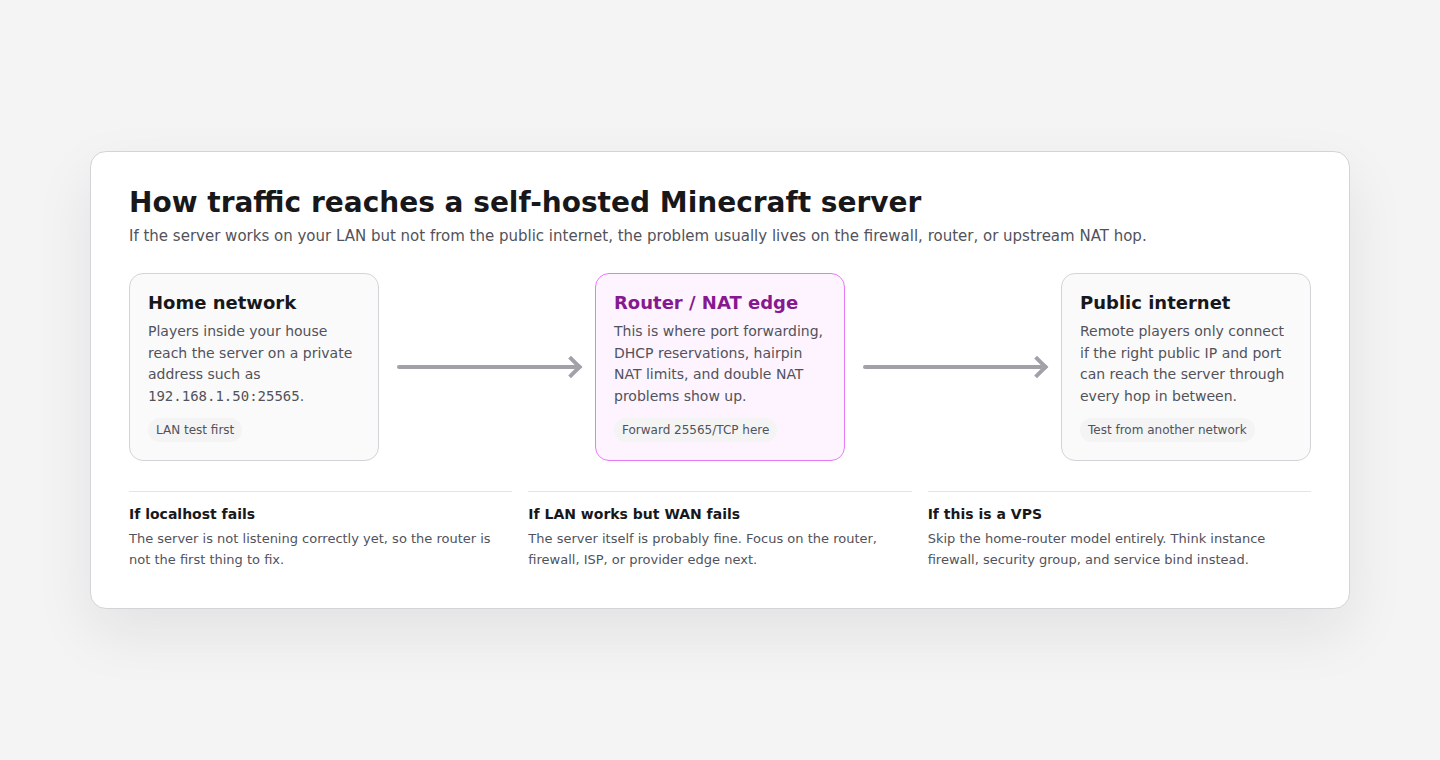
Pick the right networking model
You usually need all three of these:
- the server listening on the expected port
- the host firewall allowing that port
- the router forwarding the port to the correct LAN IP
Start with the right question
Before touching the router again, separate the problem into one of these categories:
- The Minecraft server itself is not running correctly.
- The server works on the local network, but not from the internet.
- The port is open, but people are still connecting to the wrong address.
You save a lot of time by testing in that order.
Fast diagnosis map
Work through it in this order
Test the server locally on the host
On the machine that runs Minecraft, try joining with:
localhost:25565If that fails, stop thinking about the router. The issue is local:
- the server process is down
- the game port is different from what you think
- a startup error stopped the server before it became reachable
On Linux, confirm the process is actually listening:
ss -ltn | grep 25565If you do not see a listening socket for the expected port, fix the server startup first.
Test from another device on the same LAN
Now test from a second device inside your home network using the server machine's local IP, for example:
192.168.1.50:25565If this works, your Minecraft server is fine and the problem is somewhere between your router and the internet.
If this does not work, the problem is still local:
- the server bound to the wrong interface
- the host firewall blocks the port
- the machine's IP changed
Make sure the server has a stable local IP
A lot of broken port forwards come from a simple mistake: the router is forwarding traffic to yesterday's IP.
Reserve the server's LAN IP in your router's DHCP settings or assign a static address correctly on the host.
If your router rule points to 192.168.1.50 but the server is now
192.168.1.73, the forward will never work no matter how many times you
recreate it.
Forward the correct protocol and port
For Minecraft Java:
- default port:
25565 - protocol:
TCP
If you changed server-port in server.properties, forward that new port
instead.
Leave server-ip blank unless you are deliberately binding the server to a
specific interface. Paper's
server.properties reference
describes server-ip as the bind address. It is not the place to paste your
public IP, and setting it wrong can produce bind failures that look like
router problems.
If you are actually running Bedrock, this guide is the wrong one. Bedrock
usually uses 19132/UDP, which changes the diagnosis completely.
Check the host firewall
Even with a perfect router rule, the operating system can still reject the connection.
On Linux with ufw, check the current rules:
sudo ufw statusIf needed, allow the Minecraft Java port:
sudo ufw allow 25565/tcpIf you use another firewall layer such as firewalld, nftables, or
cloud-init security rules, check those too.
Do not trust same-network public-IP tests
Many home routers do not support NAT loopback, also called hairpin NAT.
That means this can happen:
localhostworks- the LAN IP works
- your public IP fails from inside your own house
- the server is actually reachable from outside
So do not treat an internal failure against your own public IP as definitive proof that the forward is broken.
A better test is:
- ask a friend on a different network to connect
- use your phone over mobile data
- use a VPS or remote host to test the port
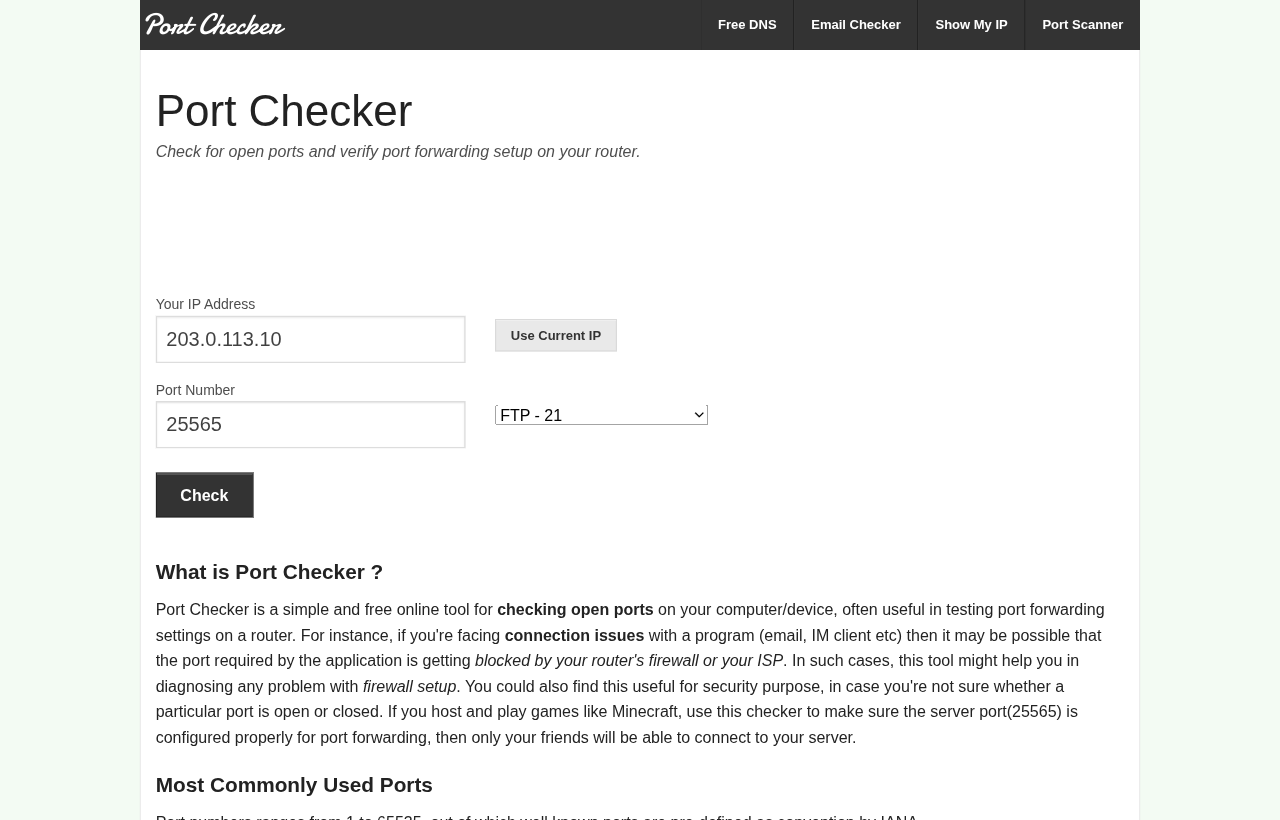
- run an external port checker like portchecker.co against your public IP
Check for double NAT or CGNAT
This is one of the most common reasons a correct-looking router rule still does nothing.
Compare:
- the WAN IP shown in your router
- the public IP you see from a browser
If they do not match, or if your router's WAN IP is in a private range such
as 10.0.0.0/8, 172.16.0.0/12, 192.168.0.0/16, or in shared
carrier-grade NAT space like 100.64.0.0/10, you probably are not holding
the public edge.
Those ranges are not random. RFC 1918
reserves the private ranges used inside normal LANs, and
RFC 6598 reserves 100.64.0.0/10
for shared address space often used with carrier-grade NAT.
That usually means one of these:
- your ISP uses CGNAT
- your modem is also acting as a router
- you have a second router in front of your own router
In that case, a normal port forward on the inner router is not enough.
If you use a VPS, think firewall, not forwarding
On a VPS, "port forwarding" is usually the wrong mental model.
You typically need to check:
- the instance firewall
- the provider's security group or network ACL
- whether the service is listening on the public interface
If the server works on localhost but not from the internet on a VPS, the
missing piece is often an inbound allow rule for 25565/TCP.
Watch for the obvious address mistakes
These are boring, but they break setups constantly:
- sharing the LAN IP with friends instead of the public IP
- sharing an old public IP after the ISP changed it
- forgetting the custom port when not using
25565 - updating DNS slowly and assuming everyone sees the same record instantly
If you use a domain, confirm it resolves to the IP you expect.
Read the symptom, not just the port checker
A generic "closed port" result is not enough to tell you what broke. Match the symptom to the likely layer:
| Symptom | Most likely issue |
|---|---|
localhost does not work | Server startup or local bind problem |
| LAN IP works, public IP fails | Router, upstream NAT, or firewall problem |
| Public IP works for one day, then fails later | DHCP address changed and forward now points at the wrong host |
| VPS setup fails immediately | Provider firewall or security-group rule missing |
| Internal public-IP test fails but remote test works | NAT loopback limitation, not an actual outage |
Port checkers are useful, but they only tell you what the checker saw from outside. A closed result can still come from the Minecraft process not listening, the router rule pointing to an old LAN IP, a host firewall, a provider firewall, or CGNAT.
Failure modes people mix up
That is often a NAT loopback limitation. It can look like a broken forward even when the server is actually reachable from outside.
CGNAT means your router is not holding the public edge. In that case, a normal forward on your own router may never receive the inbound traffic you expect.
Because most VPS setups do not involve a consumer router translating inbound ports to a private LAN host. The usual problem is an upstream firewall rule, not a forward.
What this means for Minecraft panels
Even when the game port is correct, many admins accidentally create a second networking problem by exposing a separate web panel as well.
That is one of the reasons the setup model matters.
Your players still need the Minecraft game port reachable. There is no way around that. But your admin workflow does not also need a second public panel endpoint to babysit.
Where EnderDash fits
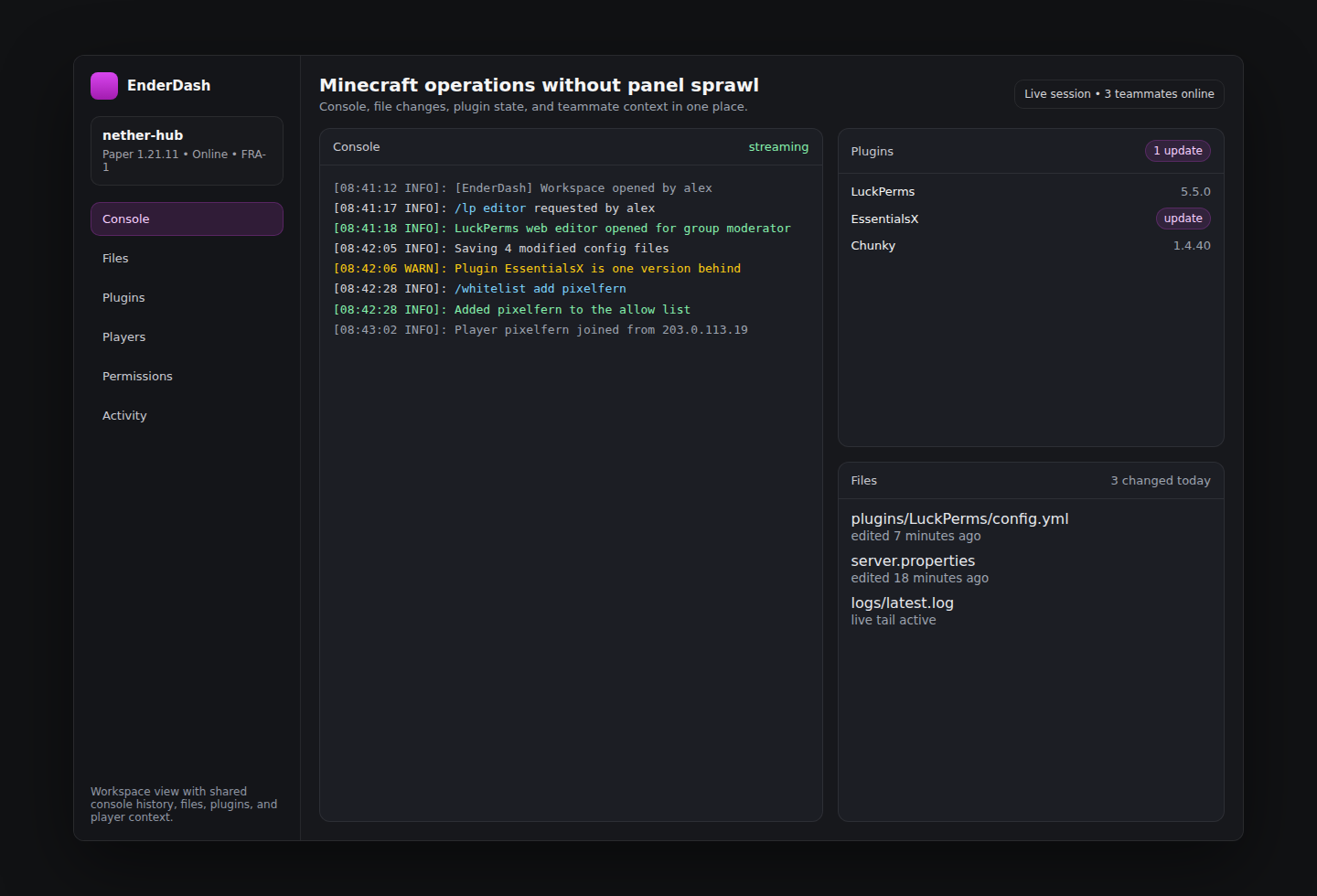
If you already self-host the game server, EnderDash is built so the operational surface does not become another inbound-web-port project.
The game server still needs to be reachable by players. The admin layer is different: install the agent once, keep the server on your infrastructure, and manage console, files, plugins, and permissions without standing up a separate self-hosted panel first.
If you want the next step after networking is fixed, start with:
Related articles
Can EnderDash upload custom JARs to Aternos?
EnderDash can make custom JAR uploads and Linux shell access easier on hosts that allow the agent, but it cannot bypass Aternos' free-hosting restrictions.
How to identify bot players and IP ban evasion on a Minecraft server
Learn which network, geography, session, and join-failure signals help reveal bot waves and players who may be bypassing IP bans, and how EnderDash makes that evidence easier to inspect.
How to read Minecraft server crash reports
Learn how to work through Minecraft server crash reports, `latest.log`, and common failure patterns so you can find the real cause faster.