How to read Minecraft server crash reports
Learn how to work through Minecraft server crash reports, `latest.log`, and common failure patterns so you can find the real cause faster.
Minecraft server crash reports look noisy, but most of them stop being mysterious once you know where to look.
The biggest mistake admins make is reading the whole file from top to bottom as if every line matters equally. It does not. Most of the time you are trying to answer one much smaller question:
What was the first actionable failure?
That is the line that tells you what to fix.
Quick answer
Start with the shortest path that can explain the failure: read the summary, search for Caused by:, identify the first plugin, mod, or system component named near that failure, and only then
decide what to change. Most wasted time comes from changing five things before identifying the
first real cause.
See the pattern before you read the whole file
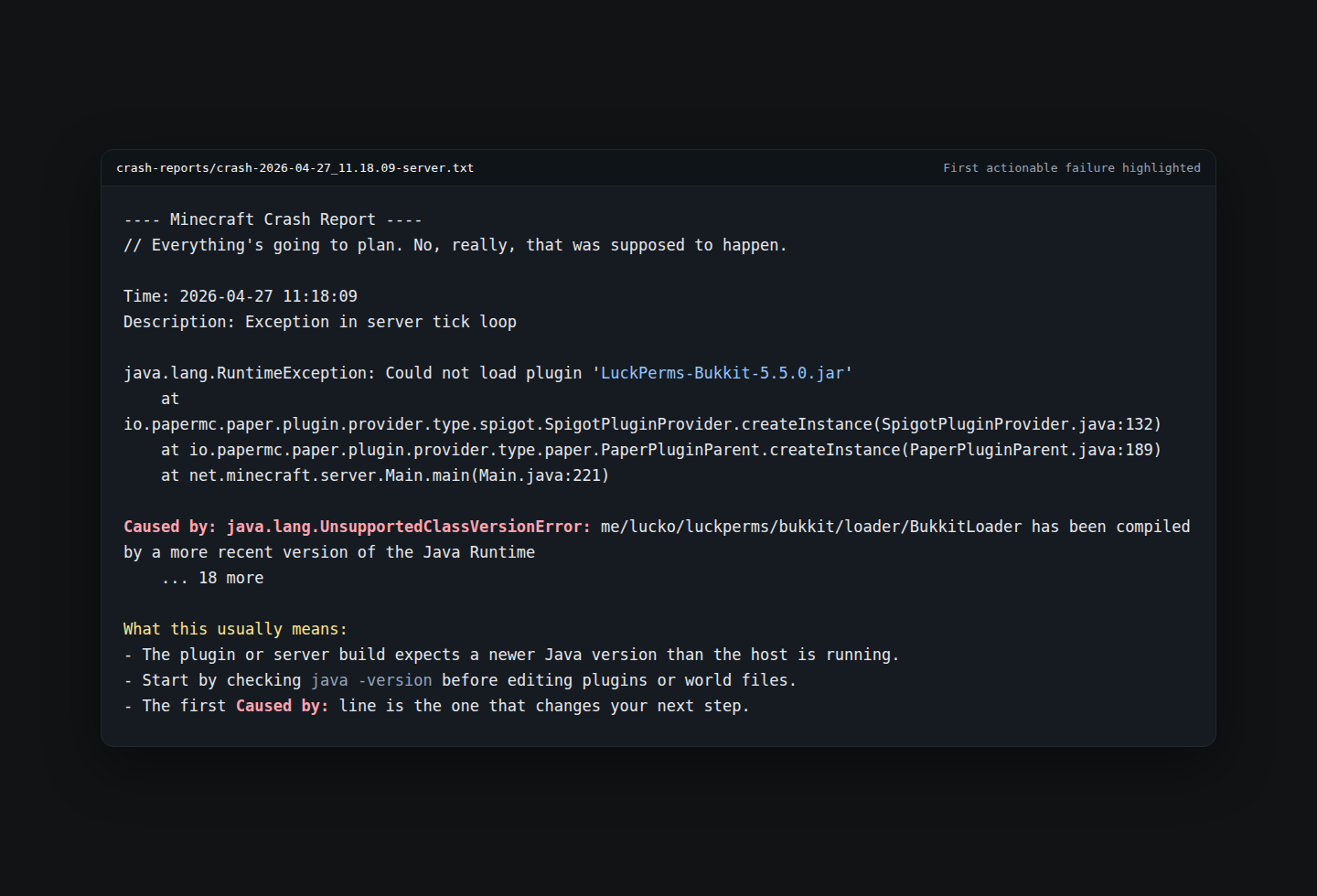
This is what a useful first pass looks like in practice.
Choose the right evidence first
Start here when Minecraft produced a file in crash-reports/. This is the best place to find
the summary line, stack trace, and the first Caused by: marker.
First, know which file you are actually reading
A "server crash" can leave behind different evidence depending on how the process died.
The usual places to check are:
crash-reports/for formal Minecraft crash reportslogs/latest.logfor startup failures, plugin errors, and crashes that did not generate a formal reporths_err_pid*.logfor JVM-level fatal crashes
Not every failure creates a file in crash-reports/. If that folder is empty, do not assume the server died cleanly. It may have been killed by the OS, by the JVM, or by something outside Minecraft itself.
What to collect before you change anything
Before you start deleting plugins or changing configs, collect:
- the newest crash report if one exists
logs/latest.log- the server version
- the Paper or proxy version
- the Java version from
java -version - the list of plugins or mods that changed recently
Most crash diagnosis gets much easier once you know what changed just before the failure.
Paper's own
basic troubleshooting guide
uses the same shape: back up before risky changes, read latest.log, inspect
stack traces, check plugin names and library dependencies, and treat Java version
errors as versioning problems before you start deleting world data.
Read in this order, not in file order
Read the one-line description
Treat it like a headline. It tells you which family of problem you are in.
Search for Caused by:
This is usually the fastest way to reach the first actionable failure instead of the follow-up errors that came later.
Identify the first named component
Look for the first plugin, mod, package, file path, or system layer clearly attached to the failure.
Match it to the failure type
Decide whether the evidence points to a version mismatch, config problem, missing dependency, permissions issue, or bad world data.
Start with the description
Most crash reports include a short description near the top.
That line is not the full answer, but it tells you which family of problems you are dealing with.
Examples:
Exception in server tick loopFailed to start the minecraft serverTried to load invalid itemUnexpected error
Treat this line as a headline, not a diagnosis.
Then search for Caused by:
This is usually the most useful marker in the whole file.
Search for:
Caused by:You may see several matches. What you want is the first one that clearly points to the real failure rather than a follow-up error.
Common examples:
Caused by: java.lang.UnsupportedClassVersionErrorCaused by: java.lang.OutOfMemoryErrorCaused by: org.spongepowered.asm.mixin...Caused by: java.nio.file.AccessDeniedException
Those lines usually tell you more than the giant stack trace around them.
Match the error pattern to the likely cause
Here are the patterns that show up constantly.
| Error pattern | Usually means |
|---|---|
UnsupportedClassVersionError | Wrong Java version for the server, plugin, or mod |
OutOfMemoryError | Not enough memory, memory leak, or runaway workload |
Address already in use | Another process already uses that port |
Mixin failure | Mod conflict, outdated mod, or wrong mod-loader version |
NoSuchMethodError / NoClassDefFoundError | Incompatible plugin or missing dependency |
AccessDeniedException | File permissions problem |
| Region or chunk read errors | Corrupt world or storage issue |
Failed to bind to port | Another server is already using the port, or server-ip is set incorrectly |
| Watchdog thread dump | The main server thread stalled long enough for Paper to dump thread state |
These are not perfect one-line diagnoses, but they are good first cuts.
Common failure patterns people misread
This usually means the Java runtime is wrong for the server, plugin, or mod. It often looks scarier than it really is.
This is often a compatibility problem, not generic corruption. Think wrong plugin version, wrong server API level, or a missing dependency JAR.
More RAM is not always the whole answer. It can also mean a leak, a runaway workload, or a plugin doing something pathological.
Stop treating it like a normal plugin failure. At that point you are often debugging specific world data, region files, or player data.
Learn to identify version mismatches fast
A lot of Minecraft crashes are not "deep Java problems." They are just version mismatches with ugly formatting.
Look for signs like:
- a plugin compiled for a newer API than your server provides
- a mod built for a different loader or different Minecraft version
- Java too old for the current server or plugin build
If the server died right after a plugin update or a Minecraft upgrade, start there before you blame the world data.
Read the plugin or mod names literally
Admins often skip past the most useful part because they assume the file is too technical.
If the crash report or latest.log mentions:
- a plugin JAR name
- a mod ID
- a package name that obviously belongs to a plugin
that is often the lead.
For example, if the trace points into a permissions plugin, that is not "just Java." It is telling you where to start.
Use latest.log when the crash report is missing or incomplete
When there is no helpful crash report, logs/latest.log often has the real story.
latest.log is especially useful for:
- plugin load failures
- bad config syntax
- missing dependency JARs
- startup loops that end before Minecraft writes a formal crash report
Scroll to the bottom first, then move upward until you reach the first real error, not the cascade that followed it.
Check Paper-specific startup traps
Some failures look like plugin or network problems until you know the Paper pattern.
Failed to bind to port usually means one of two things:
- another Java process is already using the port
server-ipinserver.propertiesis set incorrectly
server-ip is not where you put the public address players use. Paper's
server.properties reference
describes it as the address the server binds to. For most single server setups,
leave it blank so the process can listen on the normal interfaces.
If the log contains a watchdog dump with a warning like DO NOT REPORT THIS TO PAPER, treat it as a severe lag investigation first. Look at the first useful
frames in the server-thread stack, then use a spark profile if the server can
stay up long enough to capture one.
Watch for crashes that are not really "Minecraft" crashes
Sometimes the Minecraft process dies because the host killed it.
Common examples:
- the machine ran out of memory and the OOM killer terminated Java
- disk space filled up
- the service manager restarted the process after repeated failures
- a filesystem or permission issue prevented the world or plugins from loading
When the evidence inside the Minecraft files feels thin, check the host too.
On Linux with systemd, this is often the next useful command:
sudo journalctl -u minecraft -n 200If the process vanished and Minecraft did not write a useful log, check whether the kernel killed Java:
dmesg -T | grep -i killedPaper's troubleshooting docs call this out for crash-without-log cases,
especially when a panel or container memory limit is set too close to -Xmx.
Do not change five things at once
Once you think you found the cause, change one variable at a time.
Good examples:
- remove or roll back one newly updated plugin
- switch to the correct Java version
- restore one damaged config from backup
- test the server without one suspected mod
Bad example:
- updating Java, removing half the plugins, editing three configs, and changing world files all in one pass
That just destroys your ability to tell what actually fixed it.
A safe recovery pattern
When the crash affects production data, use this order:
Back up the current server directory first
Protect the current state before you touch plugins, configs, or world data.
Identify the most likely cause from the report or log
Pick the smallest explanation that fits the evidence you actually have.
Make the smallest reversible change
Resist the urge to rewrite half the server in one pass.
Start the server and watch the console closely
Treat the next boot as a test, not as a blind retry.
If it fails again, collect the new log before the next change
Fresh evidence is how you avoid thrashing.
This is slower than random guessing for five minutes and much faster than random guessing for three hours.
When the problem is probably world data
If the crash points at chunks, region files, or specific player data, stop treating it like a generic plugin issue.
That usually means you need to answer a different question:
What data object is broken, and what is the smallest repair that gets the server back?
That can mean:
- restoring one region file from backup
- removing one bad player data file
- rolling back a plugin data file that corrupted during shutdown
Always copy the affected files before you touch them.
Screenshots are not enough
If you need help from someone else, share the actual text, not a cropped screenshot of the terminal.
A screenshot hides the context, wraps lines badly, and removes the ability to search for the real failure markers.
At minimum, share:
- the full error text
- the server version
- the Java version
- what changed just before the crash
If the log contains secrets, private IPs, or credentials, scrub those first.
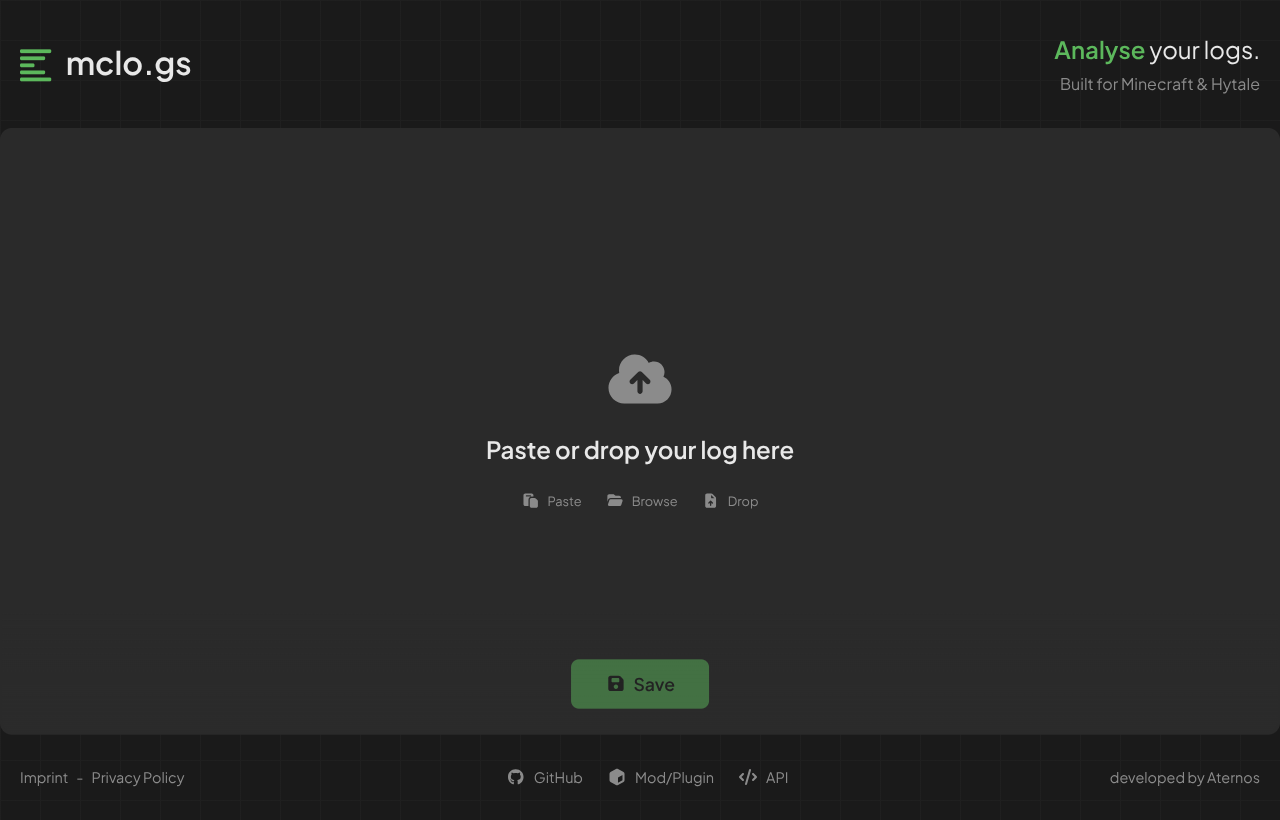
The path of least resistance is a paste site built for Minecraft logs. mclo.gs accepts a drop or paste, gives you a permanent link, and runs basic analysis on the file you uploaded. Some tools can remove common sensitive values, but you should still review the text yourself before sharing a production log.
Where EnderDash fits
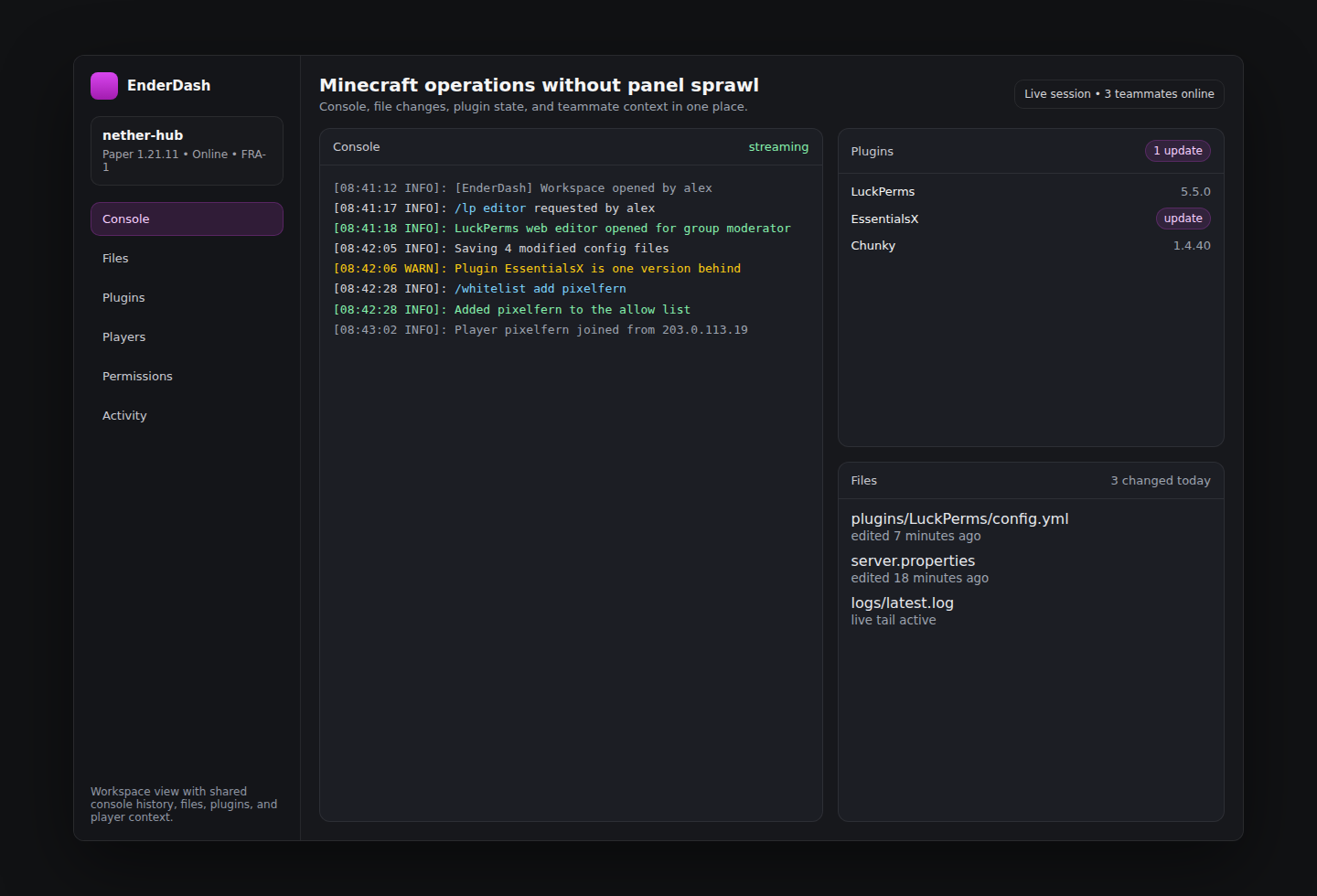
Crash diagnosis gets easier when the things you need are already in the same place:
- live console output
- buffered history
- file access
- plugin inventory
- teammate-visible context around what changed
That is the operational angle EnderDash is built for. It is less about pretending crashes never happen and more about shortening the path from "it broke" to "we know what broke and why."
If you want to see the product surface around that workflow, start with:
Server Panels
See which panels are relevant when you are moving between console, files, plugins, and player context.
Recover an Offline Server
Use the docs flow when the issue is connectivity or agent state rather than the game process itself.
Workspaces
See how EnderDash keeps investigation context in one place instead of scattering it across tabs and tools.
Related articles
Can EnderDash upload custom JARs to Aternos?
EnderDash can make custom JAR uploads and Linux shell access easier on hosts that allow the agent, but it cannot bypass Aternos' free-hosting restrictions.
How to identify bot players and IP ban evasion on a Minecraft server
Learn which network, geography, session, and join-failure signals help reveal bot waves and players who may be bypassing IP bans, and how EnderDash makes that evidence easier to inspect.
How to self-host a Minecraft server on Linux with Paper
A practical step-by-step guide to running a Minecraft Java server on Linux with Paper, including setup, updates, backups, and the operational work that starts after launch.