Read logs and send console commands
Use live output, log history, and a harmless command to verify your game runtime.
Before you begin
You need access to the server and an agent that reports game-console support. The runtime must be online. For host commands, use Shell instead; the game console sends commands to the game runtime.
Read the live console
- Open the server, then Console.
- Select Live and wait for fresh log lines.
- Use Pause live console when you need to read moving output. Resume when you are ready.
- Enable line wrapping if long lines extend beyond the panel.
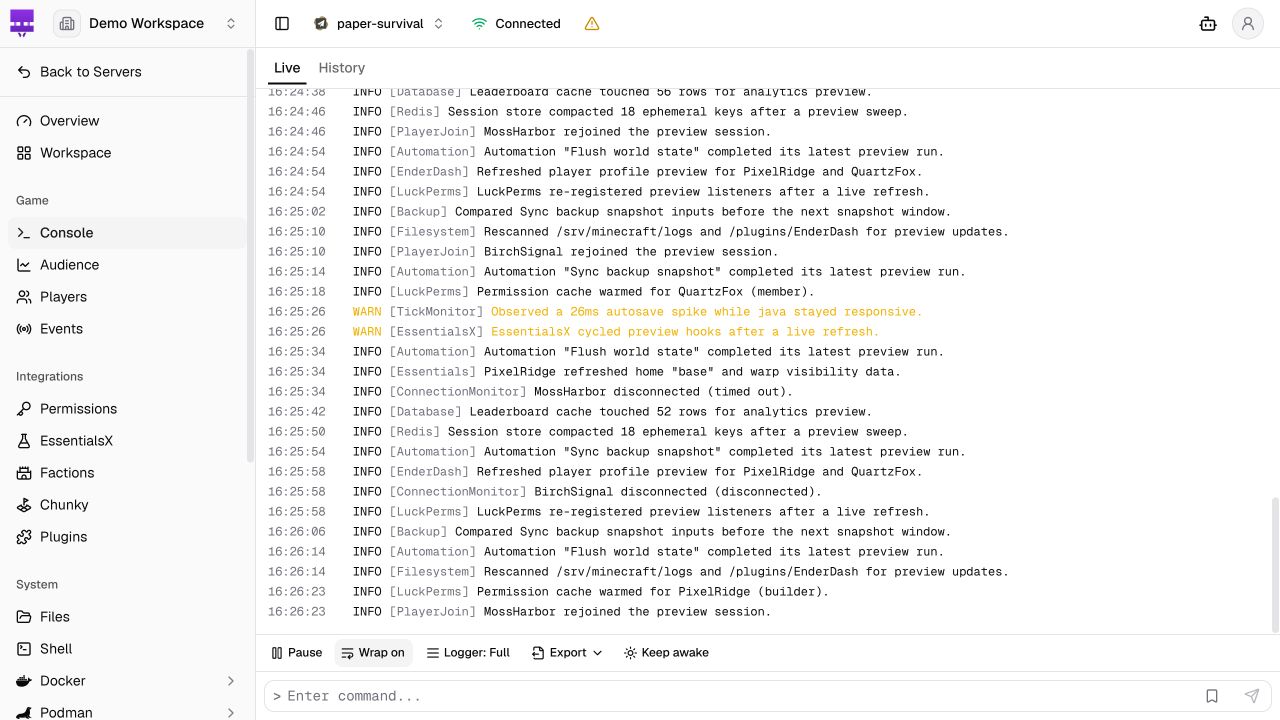
Pausing the display does not pause the game server. Console silence can also mean that the runtime has not emitted another line.
Send and verify a command
- Confirm the server name before typing.
- Enter
listin Enter command... on a Paper server. - Choose Send command.
- Check the output for the player-list response.
Enter the command as you would in the original server console, without a leading slash. A successful send is not proof that the runtime accepted the command. Read the response before repeating it.
Search older logs
When the agent provides log history, open History. Use Search log history and the log-level filter to narrow the result.
Live output and retained history are different views. If History is unavailable, check the agent's capabilities rather than expecting the browser to recover logs from before it connected.
Investigate a failure
| Symptom | Next check |
|---|---|
| Console is missing | Confirm game-console support, your server grant, and the selected runtime. |
| Output stops and commands fail | Check live connection troubleshooting. |
| The runtime reports an unknown command | Check its own command syntax and installed plugins. |
| A command changes the wrong server | Recheck the record and agent key on that runtime before sending more commands. |
Next: inspect players or schedule a command.
Was this page helpful?
Send a quick note if anything is missing or unclear.
Last updated on